How to Optimize Delivery Routes with Locate2u
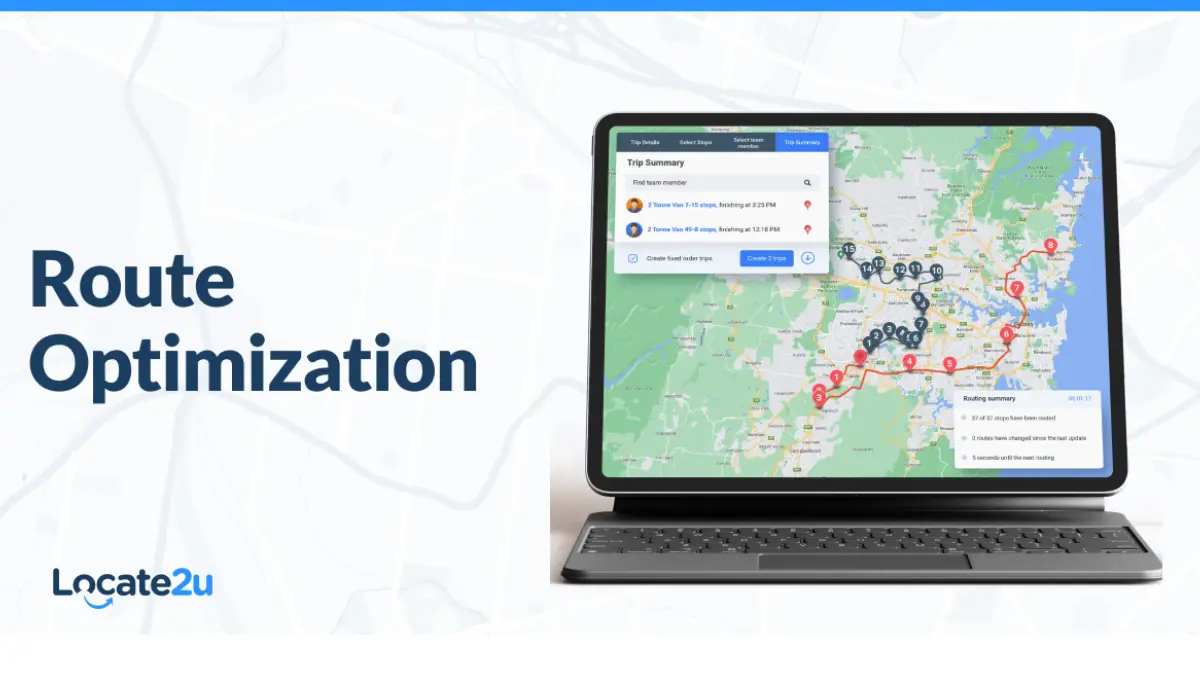
Are you ready to optimize your routes? Here’s a step-by-step guide on how you can create the most efficient delivery routes in only seconds!
Let’s get started.
Step 1: Log into your Locate2u account
The first step is pretty obvious: Log into your Locate2u account!
Step 2: Click ‘stops’ on the sidebar
On the sidebar you’ll notice a series of options. Click ‘stops‘ and you’ll be directed to the ‘stop list’ page.
Step 3: Export stops
As you can see, there’s a list of ‘stops’ and their status, as well as who they’re assigned to. On the top right corner, click the arrow going down to export your stops (or you can skip straight to the next step if you already have a spreadsheet ready).
Step 4: Import stops
Now click on the arrow that goes up and then click the blue ‘import’ button to import all your stops. This will only take a few seconds and then you’re on to the next step!
Step 5: Click ‘optimize routes’ on the sidebar
We’re getting closer! Click the ‘optimize stops’ button on the sidebar (left) and this is where the fun begins.
Step 6: Enter details and click ‘next‘
Enter in your trip details then select ‘next’. This will allow you to see your selected stops so you can make any last minute changes. Click ‘next’ again and you’ll then see your drivers.
If all is on the right track, keep clicking ‘next’
Step 7. Optimize your routes!
And in just seconds, you’ll have your routes optimized! These routes will continually update based on real-time data.
If you’re still unsure as to how to optimize your delivery routes using Locate2u, then don’t hesitate to give us a call or visit our website. We’re always here to help.
Related Articles
Logistics Partnerships for Last-Mile Success
Why last-mile success often depends on the right logistics partners, what reliable partnerships deliver, the trends shaping them and how to build them.
Training Logistics Teams for High-Speed Fulfillment
Where training speeds up logistics fulfillment: receiving, picking, shipping and systems, plus building a safety-first culture and hand-offs that really work.